
People tend to generalize that leaving Windows for Mac OS feels like the first day of school. Think again. Leave your comfort zone and with a few swipes and taps, you can also create a book on Mac.
What is A Booklet?
It is a pre-built page setting of book-making in Mac. You can conveniently create, edit layout, fold, and print it beautifully in a wide variety of Mac publishing software tools. Creating a booklet is one of the first that Mac was renowned for doing. Some known fundamentals of Mac are as follows: PostScript, QuarkXPress, Pagemaker, and Adobe InDesign.
Uses of Books
Mac OS provides a lot of shortcuts and fewer taps than Windows. You can create the following instantly:
- Story Books
- Brochures
- Catalogs
- Magazine
- Instructional Manuals
- Recipe Booklets
- Inserts for CDs or DVDs
- Documented Reports
- Bookkeeping
- Thesis
- Invitations
Steps for How to Create a Book on Mac
1. Plan your book
To make a creative project, plan the contents of your book. You can download some software available in Mac OS to help you out in preparing. This enables the users to map out your project and see how things will go, how long will it take, and foresee events that may overlap.
2. Customize a template
Staring at a blank page means you have to start from scratch. Worry no more as Mac has provided us with templates to easily manage our layout. Think of a theme that best fits your project and compile all possible images that you wish to use. A lot of different categories are available for usage.
3. Layout
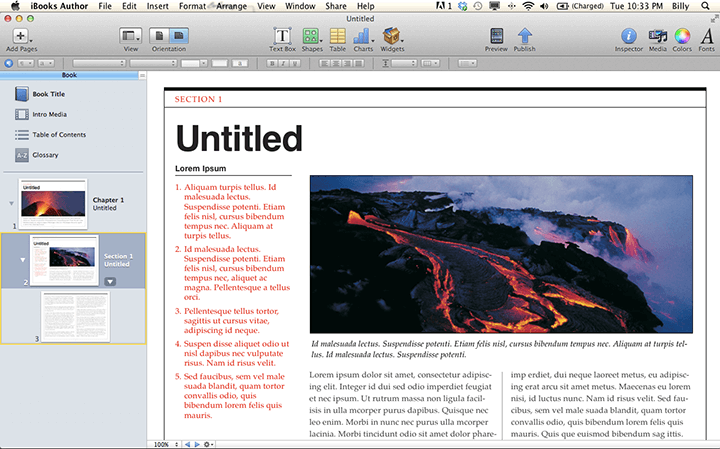
For the booklet, we are going to choose Catalog. Before starting, consider what size it will be. Size matters as it varies whether you are going to make a PDF or print it. If you will print it, ensure that the layout matches the paper size. Note that the size of your booklet will be in half when printed.
4. Photos
Mac has a huge library of photos to choose from if you do not have any available one. You can use your own photos, feel free to do so.

Select the image on the template that you wish to replace, and click the picture icon in the left sidebar. From there, click Photos to add a photo from that app or Custom Folder to open a folder on your Mac. Once you have decided on the photo, drag it onto the one you selected and it will fill the image in the box.
5. Text
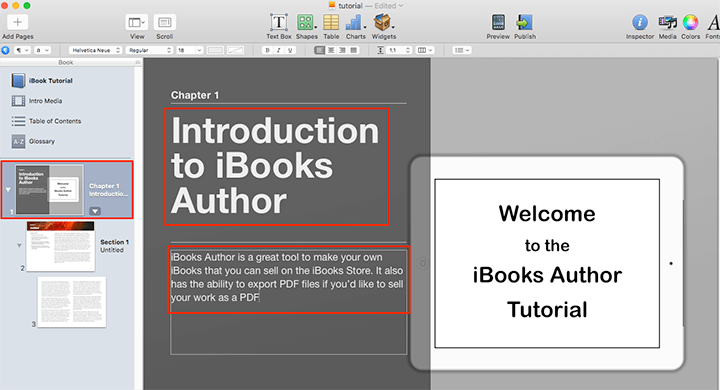
There is an existing text to show how your text will look like. Click the text box on the template, type or paste the contents that you wish to add. To format and edit, find the toolbar at the top of the window, and choose Text Styles to view the pre-created fonts. If you want a simple one, click the Text button and choose the font, color, and size. Always keep in mind that your font can be legibly read. To add more text anywhere on the page, find the above Editing Tools and choose Text Box.
6. Pages
The template will always have limited pages. In adding, click “+” to the left of the page thumbnails bar above the document. Expect the new page will be blank. Copy the elements from the previous and start editing. Templates pages usually have 2 layers window that can be seen at the bottom of the right-hand sidebar. In copying elements, remember to copy from both layers in turn. Add more pages as needed.
7. Printing
Ensure to apply enough spaces in the margins. Follow the printer options then print. Bind it any way you like it.
Conclusion
Now that we have gone over the ultimate guide on how to create a book on Mac, it’s time to get started. Want to reach more readers? Try to transform the static book into a page-turning format. Flip PDF Plus is the perfect tool to help you get the conversion. The top-notch software turns PDFs into animated flipbooks with a variety of multimedia elements. The created books provide your readers with an immersive viewing experience and facilitate you to interact with them. Embrace it for your digital book creation and elevate your content to new heights effortlessly.
Convert Your PDF to A Flipbook Easily