
Вы потратили часы на создание качественного PDF-файла — каталога продукции, корпоративного отчета или учебного пособия. Но когда вы делитесь им, получатели относятся к нему как к любому другому вложению: скачивают, бегло просматривают в течение десяти секунд, а затем забывают в папке загрузок. Проблема не в вашем контенте, а в формате. Статические PDF-файлы просто не могут конкурировать за внимание в мире бегущей строки и интерактивного контента.
Преобразование вашего PDF-файла в цифровая интерактивная книга Это полностью меняет правила игры. Флипбуки добавляют реалистичную анимацию перелистывания страниц, встроенные видеоролики, кликабельные ссылки и адаптивный дизайн, работающий на любом устройстве. Результат? Более высокая вовлеченность, большее время чтения и лучшие показатели конверсии.В этом руководстве вы шаг за шагом узнаете, как превратить PDF-файл в электронную книгу, используя как настольные, так и онлайн-инструменты.
Что такое интерактивная книга и зачем конвертировать PDF-файлы?
Флипбук — это интерактивное цифровое издание, имитирующее процесс перелистывания страниц обычной книги или журнала. В отличие от обычного PDF-файла, который читатели пассивно прокручивают, флипбук предполагает взаимодействие: страницы переворачиваются с приятной анимацией, встроенный медиаконтент воспроизводится непосредственно в тексте, а гиперссылки направляют читателей глубже в контент.
Вот почему маркетологи, преподаватели и издатели переходят на этот подход:
- Обручение: Согласно исследованиям в области цифрового издательства, электронные книги удерживают внимание в 3–5 раз дольше, чем статичные PDF-файлы.
- Доступность: Читатели могут просматривать электронные книги в любом браузере — без загрузок и специального программного обеспечения.
- Аналитика: Отслеживайте просмотры страниц, время, проведенное на странице, переходы по ссылкам и географическое местоположение читателей.
- SEO: Электронные книжки в онлайн-формате могут индексироваться поисковыми системами, что приводит к увеличению органического трафика.
- Брендинг: Настройте фон, логотипы, цвета и навигацию в соответствии с вашим фирменным стилем.
Независимо от того, публикуете ли вы что-либо цифровой каталог, ан электронная книга из PDFили цифровая брошюраПереход на формат «флипбук» — одно из самых выгодных решений с точки зрения рентабельности инвестиций.
Выбор подходящего инструмента для создания интерактивных книг
Прежде чем приступить к шагам, необходимо выбрать подходящий инструмент. Создатели интерактивных книг, как правило, делятся на две категории:
Программное обеспечение для создания настольных интерактивных книг.
Настольные инструменты, такие как Flip PDF Pro Установка на Windows или Mac обеспечит максимальный контроль. Они идеально подходят для случаев, когда требуется публикация в автономном режиме, полная настройка элементов страницы или пакетное преобразование нескольких PDF-файлов. Настольное программное обеспечение также, как правило, более плавно обрабатывает большие файлы (более 200 страниц).
Онлайн-платформы для создания электронных книг
Облачные платформы, такие как ФлипHTML5 FlipHTML5 позволяет загрузить PDF-файл и создать электронную книгу прямо в браузере. Они идеально подходят для команд, которым нужна быстрая обработка заказов, встроенный хостинг и простой обмен с помощью ссылки или кода встраивания. Например, FlipHTML5 предлагает щедрый бесплатный план, включающий неограниченное количество загрузок, онлайн-хостинг и даже богатый набор интерактивных функций например, встраивание видео и анимация.
Для всестороннего сравнения бесплатных вариантов ознакомьтесь с нашим обзором. Топ-10 бесплатных программ для создания интерактивных книг а также 8 лучших бесплатных конструкторов интерактивных книг.
Как превратить PDF-файл в интерактивную книгу: пошаговая инструкция
Приведенное ниже пошаговое руководство работает с большинством программ для создания интерактивных книг. Мы будем использовать... 1ТП16Т (настольный компьютер) и ФлипHTML5 (Онлайн) в качестве справочного материала, поскольку они охватывают оба рабочих процесса.
Шаг 1: Подготовьте свой PDF-файл
Чистый PDF-файл — залог чистого интерактивного буклета. Перед загрузкой проверьте следующее:
- Разрешение: Для просмотра на экране используйте разрешение не менее 150 DPI. Для создания анимационных книг высокого качества, подходящих для печати, используйте 300 DPI.
- Размер страницы: Единые размеры страниц предотвращают неудобные изменения макета. Формат A4 (вертикальный) или Letter хорошо подходит для большинства случаев использования.
- Шрифты: Чтобы избежать подмены шрифтов, внедрите их все. В Adobe Acrobat перейдите в меню Файл → Свойства → Шрифты и проверьте.
- Гиперссылки: Добавьте в свой PDF-файл кликабельные ссылки перед конвертацией — большинство программ для создания интерактивных книг сохранят их автоматически.
- Размер файла: Сжимайте изображения внутри PDF-файла, чтобы их общий размер не превышал 100 МБ для беспроблемной загрузки. Для этого можно использовать такие инструменты, как функция «Уменьшить размер файла» в Adobe Acrobat или бесплатные утилиты, например... Программное обеспечение для конвертации PDF может помочь.
Шаг 2: Загрузите свой PDF-файл в программу для создания интерактивных книг.
Настольный компьютер (Flip PDF Pro):
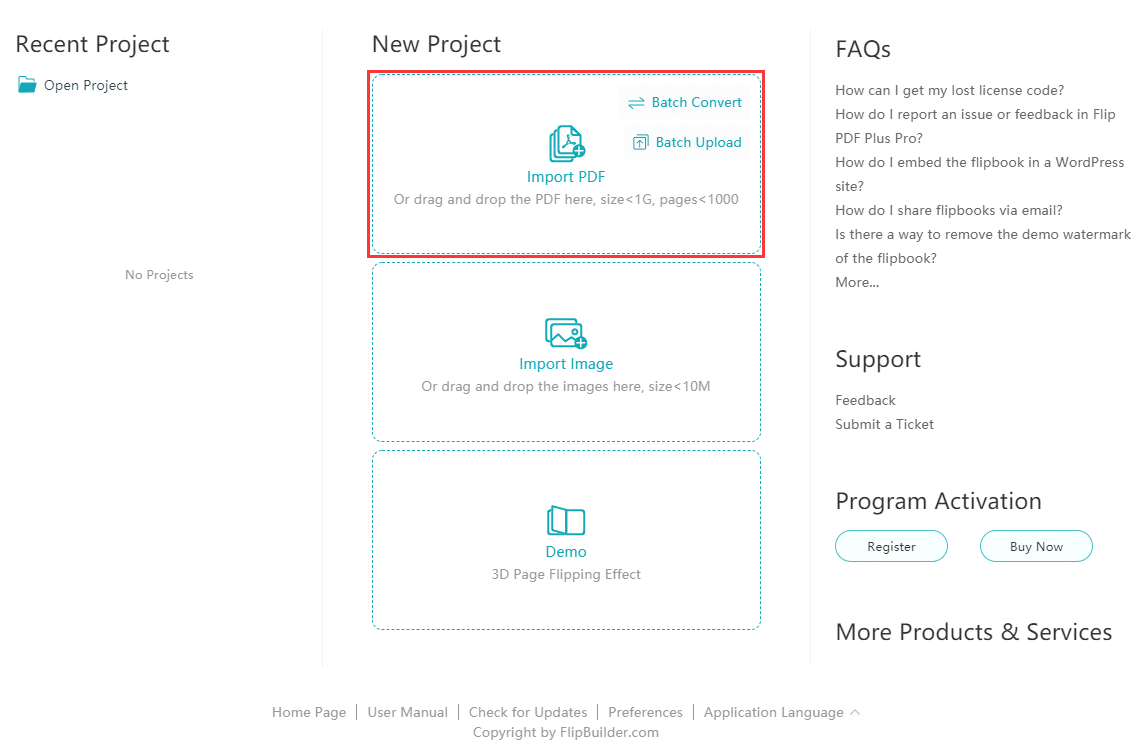
- Откройте Flip PDF Pro и нажмите «Импорт PDF» на стартовом экране.
- Найдите свой файл, при необходимости выберите диапазон страниц и нажмите кнопку. Импорт.
- Программа преобразует каждую страницу в высококачественное изображение и располагает их в порядке, соответствующем формату флипбука.
Онлайн (FlipHTML5):
- Войдите в систему по адресу fliphtml5.com и нажмите "Загрузить" на вашей панели управления.
- Перетащите PDF-файл или выберите его с помощью щелчка мыши. В платных тарифных планах поддерживаются файлы размером до 200 МБ.
- Платформа обрабатывает страницы на стороне сервера — обработка больших файлов может занять 1–2 минуты.
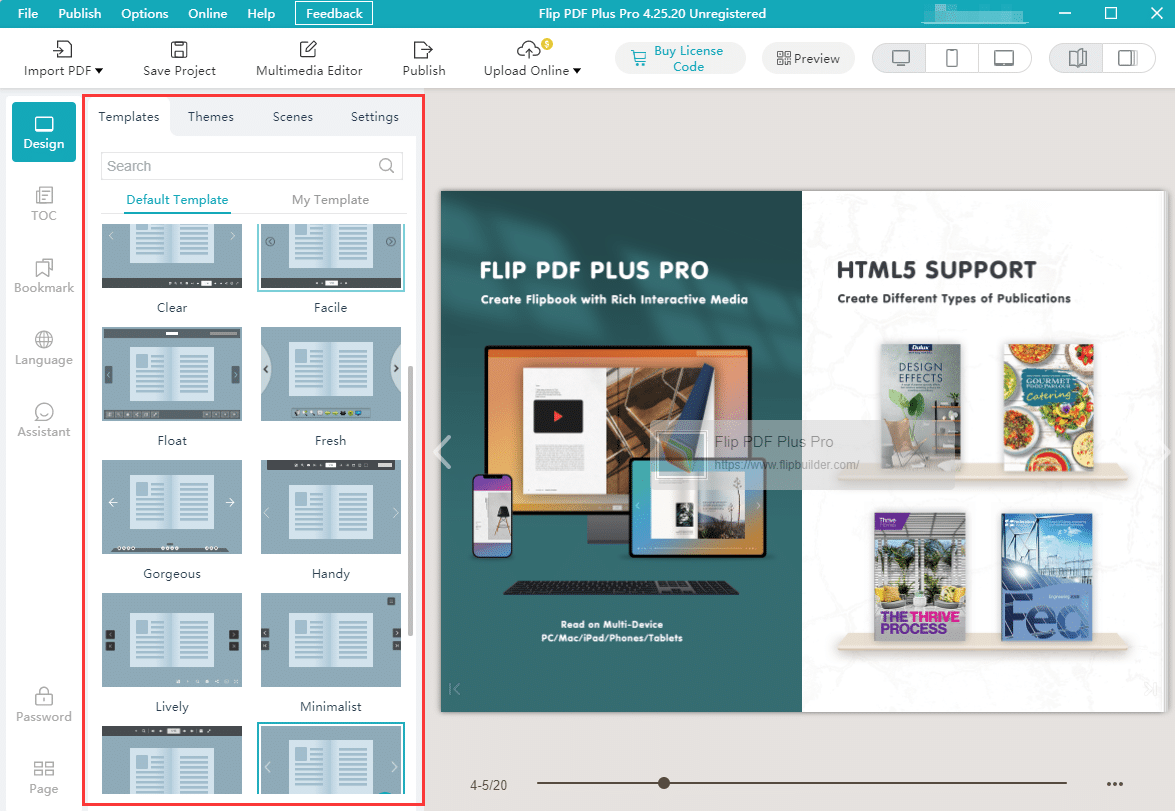
Шаг 3: Настройка дизайна и фирменного стиля.
Вот тут-то и начинает ощущаться ваша анимационная книга. ваши Вместо универсальной программы для просмотра PDF-файлов. Ключевые параметры настройки включают:
- Фон: Задайте сплошной цвет, градиент или пользовательское изображение в качестве фона для книги.
- Панель инструментов: Показать или скрыть кнопки для обмена, загрузки, печати, полноэкранного режима и поиска.
- Логотип и фирменный стиль: Добавьте логотип вашей компании на панель инструментов или экран загрузки.
- Режим перелистывания страниц: Выберите один из вариантов: реалистичное 3D-переворачивание, простое скольжение или эффект твердого покрытия.
- Звуковые эффекты: Включите или выключите звук перелистывания страниц для более полного погружения в происходящее.
FlipHTML5 библиотека шаблонов Включает десятки готовых тем для каталогов, журналов и брошюр, поэтому вам не придется начинать с нуля.
Шаг 4: Добавление интерактивных элементов
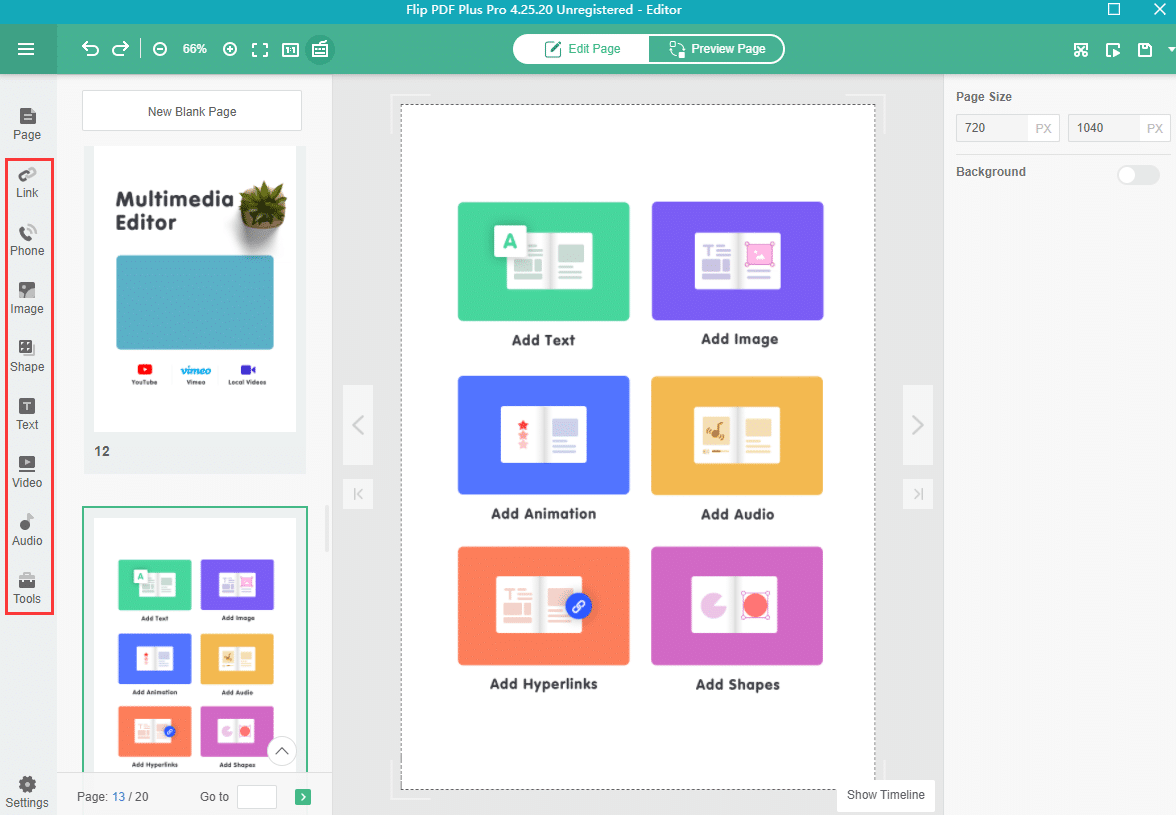
Интерактивность — это главное преимущество электронных книг по сравнению с PDF-файлами. Вот что вы можете добавить:
- Видео: Встраивайте видео с YouTube, Vimeo или загруженные с собственного сервера MP4-файлы прямо на любую страницу. Идеально подходит для демонстрации товаров или пояснительных роликов.
- Аудио: Добавьте фоновую музыку или закадровый текст для более полного погружения в повествование.
- Уязвимые места и ссылки: Создавайте кликабельные области, которые открывают URL-адреса, переходят на определенные страницы или запускают всплывающие окна.
- Фотогалереи: Предоставьте читателям возможность нажать на миниатюру, чтобы просмотреть слайд-шоу в полноэкранном режиме.
- Анимации: Используйте анимацию при появлении ключевых элементов (затухание, скольжение, масштабирование), чтобы они выделялись, когда читатели перелистывают страницу.
- Формы: Встраивайте контактные формы или опросы для генерации лидов.
Если вам нужно вдохновение, просмотрите каталог. Пример галереи FlipHTML5 чтобы увидеть, что возможно — от интерактивных каталогов до анимированных лукбуков.
Шаг 5: Предварительный просмотр, публикация и обмен
Перед публикацией просмотрите свою электронную книгу на компьютере и мобильном устройстве, чтобы убедиться в ее качестве:
- Выравнивание страниц и читаемость на экранах разных размеров
- Все ссылки и встроенные медиафайлы загружаются корректно.
- Фирменный стиль выглядит единообразно на всех страницах.
- Время загрузки приемлемое (менее 5 секунд для первой страницы).
Варианты публикации обычно включают:
- Онлайн-хостинг: Получите URL-адрес, которым можно мгновенно поделиться. FlipHTML5 размещает вашу электронную книгу на своей CDN без дополнительной платы.
- Код для встраивания: Вставьте iframe на свой сайт, в блог или на целевую страницу. Ознакомьтесь с нашим руководством по этому вопросу. встраивание интерактивных цифровых каталогов за чаевые.
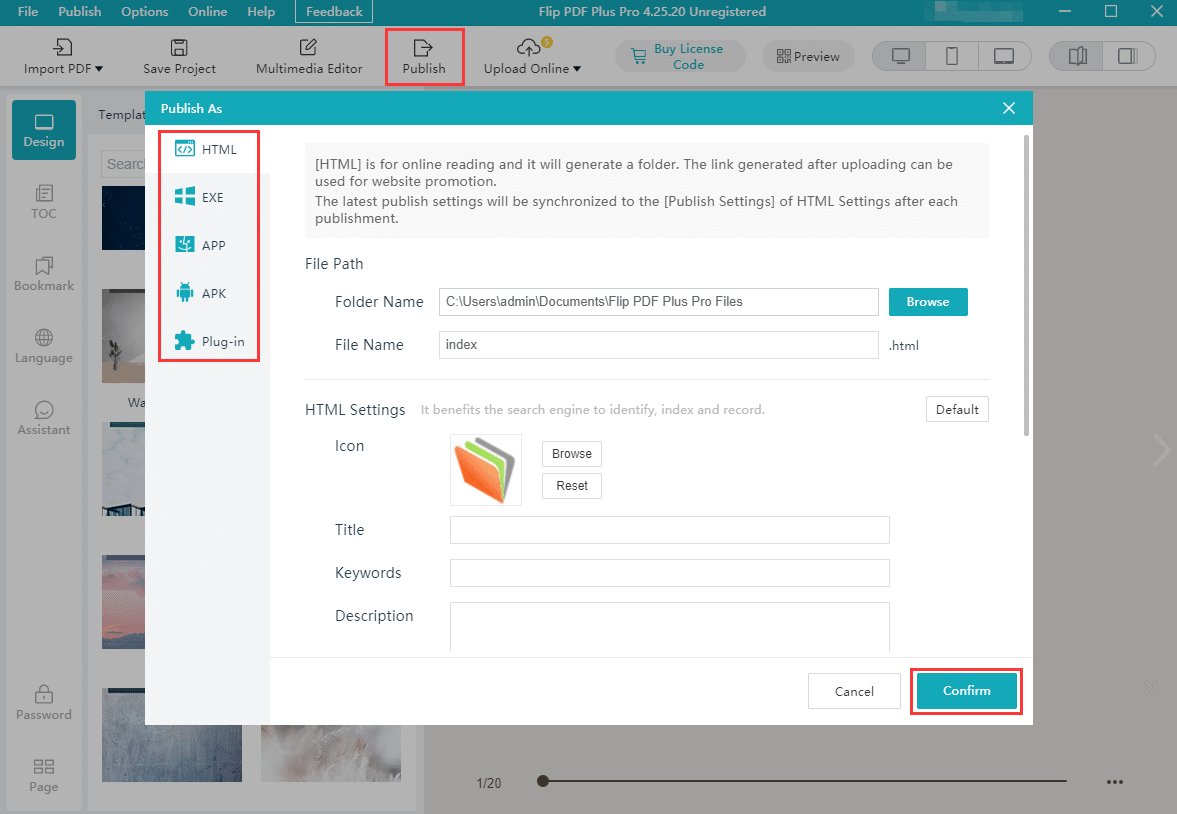
- Экспорт в офлайн-режиме: Экспорт в формате HTML5 для локального просмотра или распространение на USB-накопителях. Настольные программы, такие как Flip PDF Pro, поддерживают форматы EXE, ZIP и APP.
- Обмен информацией в социальных сетях: Поделитесь напрямую в Facebook, Twitter, LinkedIn или по электронной почте.
5 лучших практик для создания высокоэффективных интерактивных книг.
Создать интерактивную книгу легко. Создать такую, которая... исполняет Это требует немного больше размышлений. Следуйте этим рекомендациям, чтобы максимизировать вовлеченность:
1. Оптимизация для мобильных устройств в первую очередь.
Более 601 ТБ веб-контента просматривается на мобильных устройствах. Убедитесь, что ваш электронный буклет использует адаптивный дизайн, и протестируйте его на телефонах и планшетах. Избегайте мелкого текста или плотных макетов, требующих масштабирования.
2. Старайтесь, чтобы размеры файлов были небольшими.
Перед импортом сожмите изображения. Каталог из 50 страниц не обязательно должен занимать 500 МБ. Для веб-каталогов с электронными книгами стремитесь к размеру менее 20 МБ, чтобы обеспечить быструю загрузку. Большинство программ для создания электронных книг, включая FlipHTML5, автоматически оптимизируют изображения во время загрузки.
3. Добавьте четкий призыв к действию.
У каждого электронного буклета должна быть цель. Будь то «Купить сейчас», «Скачать PDF» или «Связаться с нами», разместите призыв к действию на видном месте — в идеале на первой и последней страницах. Для каталогов рассмотрите возможность добавления кликабельных кнопок «Купить» на страницах товаров.
4. Используйте аналитику для итеративного совершенствования.
Такие платформы, как FlipHTML5, предоставляют встроенную аналитику, показывающую, какие страницы получают наибольшее количество просмотров, где читатели покидают сайт и по каким ссылкам переходят. Используйте эти данные для улучшения будущих версий. Для более подробного ознакомления прочитайте наше руководство по... создание цифровых каталогов который охватывает стратегию аналитики.
5. Включите SEO-метаданные
При размещении электронных книг в интернете добавьте описательный заголовок, метаописание и соответствующие ключевые слова. Некоторые платформы позволяют включить текстовое индексирование, чтобы поисковые системы могли индексировать фактическое содержимое страниц вашей электронной книги.
Примеры использования: Что можно превратить в интерактивную книгу?
Практически любой PDF-файл выигрывает от использования функции «перелистывания страниц». Вот наиболее популярные примеры применения:
Каталоги продукции
Превратите статичные каталоги в интерактивные буклеты с встроенными ссылками на ваш магазин. Для вдохновения в дизайне изучите эти примеры. примеры цифрового каталога а также примеры каталога продукцииFlipHTML5 даже предлагает Создатель каталогов на основе ИИ которая может автоматически генерировать макеты на основе данных о ваших товарах.
Электронные книги и руководства
Превратите свою электронную книгу-лидмагнит в увлекательную интерактивную книгу, которую читатели смогут просматривать без скачивания. Ознакомьтесь с нашей подборкой примеры интерактивных электронных книг для идей.
Журналы и информационные бюллетени
Цифровые журналы идеально подходят для формата «электронной книги». Ознакомьтесь с ними. как создавать цифровые журналы с эффектом перелистывания страниц Для получения подробной информации ознакомьтесь с руководством.

Брошюры и маркетинговые материалы
Агенты по недвижимости, туристические компании и организаторы мероприятий используют флипбуки для демонстрации объектов недвижимости, мест отдыха и площадок. Ознакомьтесь с нашей коллекцией. примеры цифровых брошюр посмотреть, как профессионалы структурируют свои документы.
Учебные пособия и отчеты
Сделайте материалы для адаптации новых сотрудников и годовые отчеты более доступными с помощью интерактивных буклетов. Наши руководства по этому вопросу доступны по ссылке: шаблоны учебных пособий а также разработка годовых отчетов Расскажите об этом подробно.
Использование настольных компьютеров или онлайн-сервисов: какой подход подходит именно вам?
| Особенность | Настольный компьютер (Flip PDF Pro) | Онлайн (FlipHTML5) |
|---|---|---|
| Требуется подключение к интернету. | Нет (работает в автономном режиме) | Да |
| ограничение размера файла | Без ограничений | До 200 МБ (платно) |
| Хостинг включен | Нет (самостоятельное размещение или экспорт) | Да (бесплатный CDN-хостинг) |
| Сотрудничество | Один пользователь | Дружелюбный к команде |
| Интерактивный редактор | Редактор полной страницы | Редактор с функцией перетаскивания |
| инструменты искусственного интеллекта | — | Искусственный интеллект для написания и верстки текстов |
| Аналитика | Интеграция с Google Аналитикой | Встроенная панель управления |
| Лучше всего подходит для | Опытные пользователи, использование в автономном режиме | Быстрая публикация, команды |
Многие профессионалы используют оба варианта: Flip PDF Pro для сложных проектов с большим количеством медиаконтента и FlipHTML5 для быстрой публикации в интернете. Учебный центр FlipHTML5 содержит обучающие материалы по началу работы с онлайн-платформой.
Устранение распространенных проблем
Даже с самыми лучшими инструментами могут возникнуть некоторые проблемы. Вот как решить наиболее распространенные из них:
- Размытые страницы: Разрешение исходного PDF-файла слишком низкое. Повторно экспортируйте файл с разрешением 150+ DPI.
- Отсутствуют шрифты: Встройте шрифты в PDF-файл перед преобразованием (Файл → Свойства → Шрифты в Acrobat).
- Ссылки не работают: Убедитесь, что гиперссылки в вашем PDF-файле представляют собой настоящие URL-адреса, а не просто текст синего цвета.
- Медленная загрузка: Сжимайте изображения, уменьшайте количество страниц в каждой электронной книге или разбивайте их на тома.
- Проблемы с отображением на мобильных устройствах: Используйте адаптивный шаблон для создания электронных книг и избегайте элементов фиксированной ширины.
Начните конвертировать ваши PDF-файлы уже сегодня!
Превращение PDF-файла в электронную книгу — это не просто косметическое улучшение, а стратегический шаг. Вы получаете более высокую вовлеченность, более богатый интерактивный контент, встроенную аналитику и опыт чтения, который действительно уважает время и внимание вашей аудитории.
При наличии подходящего инструмента этот процесс занимает менее 10 минут. Независимо от вашего выбора Flip PDF Pro для питания настольного компьютера или ФлипHTML5 Для удобства использования облачных сервисов шаги остаются теми же: загрузка, настройка, добавление интерактивности и публикация.
Готовы преобразовать свой следующий PDF-файл? Попробуйте FlipHTML5 бесплатно Создайте свой первый интерактивный мультфильм за считанные минуты — кредитная карта не требуется.