
Laporan tahunan merupakan bagian penting dari komunikasi perusahaan—namun sebagian besar akhirnya hanya menumpuk debu di laci meja atau terkubur dalam arsip email. Alasannya? Laporan tersebut dirancang sebagai dokumen kewajiban, bukan sebagai alat komunikasi. Laporan tahunan yang dirancang dengan baik tidak hanya memenuhi persyaratan kepatuhan; laporan tersebut juga menceritakan kisah yang menarik tentang organisasi Anda, melibatkan pemangku kepentingan, dan memperkuat merek Anda.
Dalam panduan ini, Anda akan mempelajari cara mendesain laporan tahunan yang benar-benar ingin dibaca orang—mulai dari perencanaan strategi konten hingga pemilihan tata letak, visual, dan format distribusi yang tepat. Baik Anda membuat laporan untuk perusahaan Fortune 500, organisasi nirlaba, atau bisnis kecil, prinsip-prinsip ini akan membantu Anda membuat dokumen yang informatif, inspiratif, dan mengesankan.

Why Annual Report Design Matters More Than You Think
Sebelum membahas cara melakukannya, mari kita bahas alasannya. Menurut survei tahun 2024 oleh Content Marketing Institute, pemangku kepentingan rata-rata hanya menghabiskan 12 detik untuk memindai dokumen perusahaan sebelum memutuskan apakah akan terus membacanya. Itu berarti desain laporan tahunan Anda bukanlah sekadar hiasan—melainkan perbedaan antara keterlibatan dan pengabaian.
Laporan tahunan yang dirancang dengan cermat memiliki banyak tujuan:
- Membangun kepercayaan dengan investor, donatur, dan mitra dengan menyajikan data secara transparan.
- Memperkuat identitas merek Anda melalui penceritaan visual yang konsisten
- Menyederhanakan informasi yang kompleks dengan bagan, infografis, dan hierarki yang jelas
- Membuat konten yang dapat dibagikan. yang memperluas jangkauan Anda di luar ruang rapat.
- Menunjukkan profesionalisme dan perhatian terhadap detail
Jika Anda sudah membuat materi portofolio perusahaanAnda memahami pentingnya presentasi visual. Laporan tahunan Anda layak mendapatkan perhatian yang sama.
Step 1: Plan Your Content Before You Design
Kesalahan terbesar yang dilakukan organisasi adalah langsung menggunakan perangkat lunak tata letak tanpa rencana konten yang jelas. Desain laporan tahunan yang hebat dimulai dengan strategi konten yang hebat.
Define Your Core Narrative
Setiap laporan tahunan harus menceritakan sebuah kisah. Tanyakan pada diri Anda: Apa satu hal yang ingin Anda ingat oleh pembaca? Mungkin itu adalah tahun pertumbuhan yang memecahkan rekor, perubahan strategi, komitmen terhadap keberlanjutan, atau dampak program komunitas. Alur naratif ini harus mengalir di setiap bagian.
Structure Your Sections
Laporan tahunan standar biasanya mencakup:
- Surat dari pimpinan – Pesan pribadi dari CEO atau ketua dewan direksi
- Refleksi tahunan / sorotan utama – Tonggak dan pencapaian penting
- Gambaran umum keuangan – Pendapatan, pengeluaran, metrik pertumbuhan
- Laporan operasional – Ringkasan departemen atau divisi
- Bagian Dampak atau CSR – Tanggung jawab sosial, keterlibatan masyarakat
- Prospek masa depan – Tujuan, strategi, dan visi ke depan
- Tim dan ucapan terima kasih – Anggota dewan, personel kunci, donatur
Tidak setiap laporan membutuhkan semua ini, tetapi kerangka kerja ini memberi Anda titik awal yang solid. Setelah kerangka konten Anda siap, Anda dapat melanjutkan ke desain yang terarah.
Step 2: Choose a Design Theme That Reflects Your Brand
Laporan tahunan Anda harus terlihat dan terasa seperti milik organisasi Anda. Itu berarti melampaui sekadar menempelkan logo Anda pada templat generik.
Color Palette
Mulailah dengan warna merek Anda, tetapi jangan takut untuk memperluas palet warna. Jika warna utama merek Anda adalah biru tua, pertimbangkan untuk menambahkan warna pelengkap—emas untuk aksen, abu-abu muda untuk latar belakang, putih untuk memberikan kesan lapang. Batasi diri Anda hingga 3–5 warna untuk menjaga keselarasan.
Typography
Gunakan tidak lebih dari dua atau tiga jenis huruf. Pendekatan umum:
- Judul berita: Huruf serif tebal atau sans-serif modern untuk memberikan kesan yang kuat.
- Teks isi: Font sans-serif yang bersih dan mudah dibaca (10–12pt untuk cetak, 14–16px untuk digital)
- Teks beraksen: Font judul Anda dalam ukuran lebih kecil untuk kutipan dan keterangan tambahan.
Visual Style
Tentukan arah visual sejak awal. Apakah Anda akan menggunakan fotografi, ilustrasi, atau campuran keduanya? Desain datar atau dimensional? Minimalis atau kaya data? Konsistensi adalah kunci—setiap halaman harus terasa seperti bagian dari dokumen yang sama.
Untuk mendapatkan inspirasi, telusuri bagaimana organisasi lain menyajikan materi mereka. Berikut rangkuman kami tentang... contoh buklet yang menginspirasi Menampilkan pendekatan kreatif terhadap tata letak dan penceritaan visual yang cocok untuk laporan tahunan.
Step 3: Design for Scannability (Because Nobody Reads Cover to Cover)
Inilah kenyataan pahit: kebanyakan orang tidak akan membaca laporan tahunan Anda dari awal hingga akhir. Mereka akan membolak-balik, memindai judul, melirik grafik, dan berhenti ketika ada sesuatu yang menarik perhatian mereka. Rancanglah laporan Anda untuk perilaku tersebut.
Use Clear Visual Hierarchy
Arahkan pandangan pembaca dengan ukuran, berat, dan warna:
- Judul H1 untuk judul bagian (besar, tebal)
- Subjudul H2 untuk subtopik (sedang, agak tebal)
- Kutipan untuk statistik kunci atau pernyataan penting
- Kotak keterangan untuk fakta penting atau informasi tambahan
- Ruang kosong untuk mencegah kelebihan rangsangan visual
Make Numbers Visual
Jangan kubur pencapaian terbesar Anda dalam paragraf teks. Ubahlah menjadi momen visual:
- Statistik penting: “Pendapatan tumbuh 47% dari tahun ke tahun” dalam huruf berukuran besar
- Infografis: Bandingkan tahun ini dengan tahun lalu menggunakan grafik atau ikon.
- Garis waktu: Tunjukkan perjalanan tahunan Anda sebagai jalur visual.
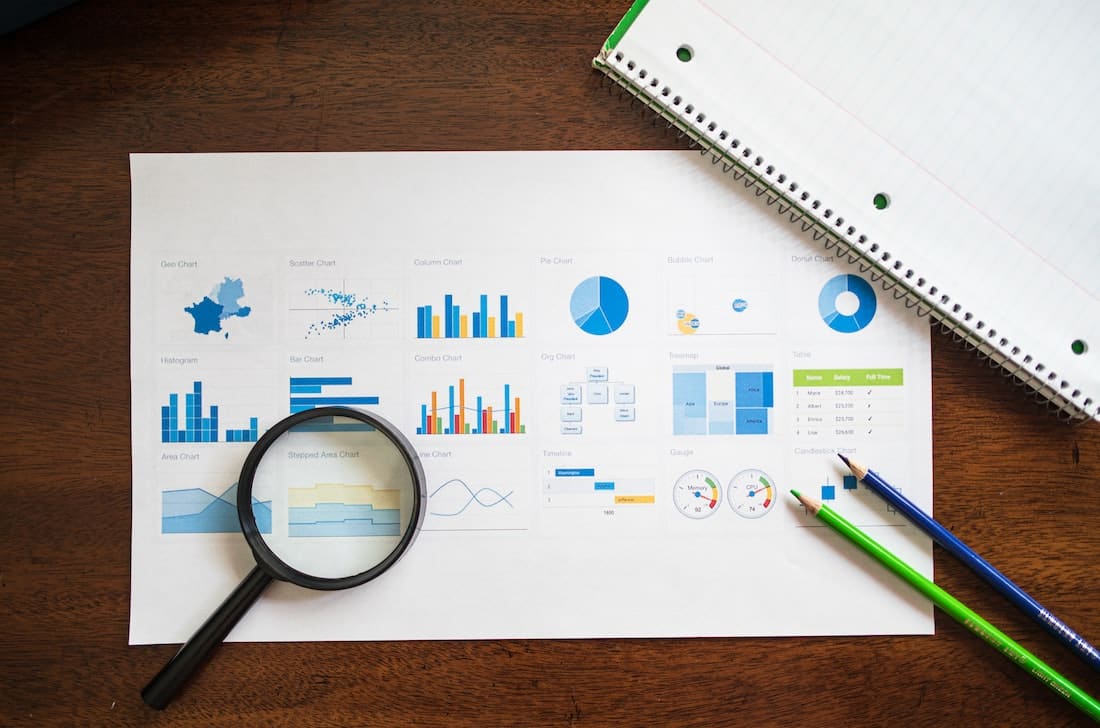
- Diagram lingkaran dan grafik batang: Sederhanakan data keuangan agar mudah dipahami sekilas.

Alat-alat seperti Fitur interaktif FlipHTML5 Memungkinkan Anda menyematkan grafik animasi dan titik data yang dapat diklik langsung ke dalam laporan tahunan digital, membuat angka-angka Anda menjadi lebih hidup dan tidak hanya statis di halaman.
Step 4: Select the Right Tools for the Job
Alat yang Anda pilih bergantung pada tingkat keahlian tim Anda, anggaran, dan kebutuhan distribusi.
For Print-First Design
Jika output utama Anda adalah laporan tercetak:
- Adobe InDesign: Standar industri untuk tata letak multi-halaman. Kurva pembelajaran yang curam tetapi kontrol yang tak tertandingi.
- Penerbit Affinity: Alternatif InDesign yang lebih terjangkau dengan fitur-fitur kelas profesional.
- Canva: Sangat cocok untuk tim tanpa desainer khusus. Templat seret dan lepas membuatnya mudah diakses.
For Digital-First Design
Jika laporan Anda terutama akan dibagikan secara online, Anda memerlukan alat yang menciptakan pengalaman digital interaktif dan menarik:
- Flip PDF Pro: Konversikan PDF yang telah Anda desain menjadi buku digital yang menakjubkan dengan efek membalik halaman, video tersemat, dan analitik.
- BalikHTML5: Buat publikasi digital interaktif yang berfungsi dengan baik di perangkat apa pun—sempurna untuk laporan tahunan yang ingin Anda distribusikan melalui tautan atau sematkan di situs web Anda.
- Visme: Cocok untuk laporan berisi data dalam jumlah besar dengan fitur pembuatan grafik bawaan.
Keuntungan beralih ke digital sangat besar. Anda dapat melacak siapa yang membaca laporan Anda, halaman mana yang paling banyak mendapat perhatian, dan di mana pembaca berhenti membaca. Jika Anda sedang mempertimbangkan jalur ini, lihat panduan kami tentang Cara membuat portofolio digital untuk tips yang berlaku sama untuk laporan tahunan.
Step 5: Write Content That Humans Want to Read
Desain menarik orang untuk datang, tetapi kontenlah yang membuat mereka tetap di sana. Berikut cara menulis laporan tahunan yang tidak terlihat seperti dokumen hukum.
Lead with Impact, Not Process
Alih-alih: “Departemen pemasaran melaksanakan 47 kampanye di 12 saluran pada tahun fiskal 2026.”
Coba: “Kampanye pemasaran kami menjangkau 2,3 juta orang tahun ini—peningkatan sebesar 62% yang menghasilkan pendapatan baru sebesar $4,8M.”
Apakah Anda melihat perbedaannya? Utamakan hasil, bukan aktivitas.
Use Real Stories
Data memberi informasi; cerita menjual. Sertakan studi kasus, sorotan karyawan, testimoni pelanggan, atau narasi dampak komunitas. Momen-momen manusiawi inilah yang mengubah laporan dari yang mudah dilupakan menjadi yang berkesan.
Keep It Concise
Setiap kalimat harus memiliki tempatnya. Hilangkan jargon, redundansi, dan bagi paragraf panjang menjadi bagian-bagian yang mudah dicerna. Jika suatu bagian lebih panjang dari satu halaman, tanyakan apakah semuanya perlu ada di sana—atau apakah beberapa konten lebih cocok untuk lampiran.

Step 6: Photography and Imagery That Elevate Your Report
Foto stok jabat tangan dan rapat dewan direksi tidak akan cukup lagi. Gambar Anda harus autentik, sesuai merek, dan memiliki tujuan.
Best Practices for Annual Report Photography
- Gunakan foto asli sebisa mungkin, libatkan tim Anda, fasilitas, acara, dan kegiatan komunitas.
- Berinvestasi dalam fotografi profesional untuk foto-foto heroik dan potret kepemimpinan
- Buat ilustrasi khusus untuk visualisasi data dan pembatas bagian
- Pertahankan konsistensi dalam penyuntingan.—terapkan gradasi warna dan gaya yang sama di semua gambar
- Sertakan keterangan gambar yang memberikan konteks dan menghubungkan gambar dengan narasi Anda
Bagi organisasi yang mencari format presentasi yang profesional, Pustaka templat FlipHTML5 Menawarkan tata letak yang dirancang secara profesional yang dapat Anda sesuaikan dengan foto dan merek Anda sendiri, sehingga menghemat waktu desain berjam-jam.
Step 7: Make Your Annual Report Interactive and Digital
Di sinilah laporan tahunan modern membedakan diri dari yang lain. Beralih ke digital bukan hanya berarti membuat PDF—tetapi juga menciptakan sebuah pengalaman.
Interactive Elements That Engage Readers
- Video tersemat: Video pesan CEO berdurasi 60 detik lebih personal daripada surat dua halaman.
- Navigasi yang dapat diklik: Daftar isi dengan tautan langsung ke setiap bagian.
- Grafik animasi: Data yang terus bertambah seiring pembaca menggulir atau mengklik.
- Titik panas: Klik untuk menampilkan detail tambahan tanpa membuat halaman terlalu penuh.
- Tombol berbagi media sosial: Izinkan pembaca untuk membagikan poin-poin penting langsung dari laporan tersebut.
Itu FlipHTML5 Pembuat Katalog AI Dapat membantu Anda dengan cepat menyusun dan menghasilkan publikasi digital interaktif. Meskipun dirancang untuk katalog, saran tata letak berbasis AI dan fitur interaktifnya sangat cocok untuk laporan tahunan yang perlu mengesankan para pemangku kepentingan.

Jika Anda baru mengenal konversi dokumen statis ke format digital interaktif, artikel langkah demi langkah kami tentang cara mengubah PDF menjadi buklet memandu Anda melalui prosesnya.
Step 8: Optimize for Multiple Distribution Channels
Laporan tahunan Anda harus dapat diakses di mana pun audiens Anda berada. Itu berarti mendesainnya dengan mempertimbangkan berbagai format.
Desainlah pada resolusi 300 DPI dengan profil warna CMYK. Gunakan margin bleed (biasanya 3mm/0,125″) dan pertimbangkan jenis kertas dan penjilidan. Untuk laporan utama, format jilid staples atau jilid sempurna akan meningkatkan pengalaman fisik.
Web and Email
Buat versi digital yang responsif untuk perangkat seluler. Alat-alat seperti... FlipBuilder Secara otomatis menghasilkan flipbook responsif yang beradaptasi dengan ukuran layar apa pun. Sertakan halaman arahan dengan poin-poin penting dan ajakan bertindak (CTA) untuk mengunduh/melihat.
Social Media
Ekstrak statistik, kutipan, dan visual penting untuk membuat aset yang siap dibagikan di media sosial. Ubah poin data Anda yang paling berdampak menjadi grafik yang mudah dibagikan. Satu laporan tahunan dapat menjadi bahan untuk konten media sosial selama berminggu-minggu.
Bagi tim yang mengelola banyak publikasi digital, artikel kami tentang templat portofolio perusahaan Menawarkan strategi pemformatan yang berguna untuk menjaga konsistensi visual materi Anda.
Step 9: Annual Report Design Mistakes to Avoid
Bahkan tim berpengalaman pun bisa terjebak dalam perangkap ini. Waspadai:
1. Wall of Text Syndrome
Jika ada halaman yang memiliki cakupan teks lebih dari 60%, desain ulang halaman tersebut. Pisahkan konten dengan gambar, bagan, kutipan, atau spasi kosong.
2. Inconsistent Branding
Setiap halaman harus jelas-jelas milik organisasi Anda. Buat panduan gaya sebelum Anda mulai dan patuhi panduan tersebut.
3. Ignoring Mobile Readers
Saat ini, lebih dari 551.260 dokumen digital dilihat melalui perangkat seluler. Jika laporan Anda tidak menyesuaikan ukuran dan tata letak untuk layar kecil, Anda kehilangan lebih dari separuh audiens Anda.
4. Burying the Good Stuff
Pencapaian terbesar Anda seharusnya tidak muncul di halaman 23. Tampilkan poin-poin penting Anda di bagian depan dan buatlah terlihat menonjol secara visual.
5. Skipping the Executive Summary
Para eksekutif yang sibuk membutuhkan ringkasan satu halaman. Selalu sertakan ringkasan eksekutif visual di bagian depan laporan Anda.
Mempelajari pendekatan desain orang lain dapat mencegah kesalahan-kesalahan ini. Jelajahi contoh pitch deck yang sukses untuk mendapatkan ide tentang cara menyajikan informasi bisnis yang kompleks dengan cara yang menarik secara visual.
Step 10: Measure, Learn, and Improve
Salah satu keunggulan terbesar laporan tahunan digital adalah analitik. Saat Anda menerbitkan menggunakan platform seperti BalikHTML5Anda mendapatkan akses untuk membaca data yang memberi tahu Anda:
- Berapa banyak orang yang melihat laporan Anda?
- Halaman mana yang paling banyak (dan paling sedikit) mendapat perhatian?
- Rata-rata waktu yang dihabiskan per halaman
- Tempat pembaca masuk dan keluar
- Distribusi geografis audiens Anda
Gunakan data ini untuk meningkatkan laporan tahun depan. Jika pembaca secara konsisten melewatkan bagian detail keuangan, mungkin bagian tersebut perlu divisualisasikan dengan lebih baik. Jika kisah-kisah dampak mendapatkan keterlibatan paling banyak, perluas bagian tersebut di lain waktu.

Bonus: Annual Report Design Checklist for 2026
Sebelum Anda mengirim laporan Anda untuk dicetak atau mempublikasikannya secara online, periksa terlebih dahulu daftar periksa ini:
- ☐ Alur cerita inti jelas dan konsisten di sepanjang cerita.
- ☐ Hierarki visual memandu pandangan pembaca di setiap halaman
- ☐ Warna merek, font, dan logo digunakan secara konsisten.
- ☐ Statistik utama disajikan secara visual (grafik, infografis, keterangan tambahan)
- ☐ Setidaknya satu kisah manusia atau studi kasus disertakan
- ☐ Ringkasan eksekutif terdapat dalam 2 halaman pertama
- ☐ Semua gambar beresolusi tinggi dan diberi keterangan yang tepat.
- ☐ Daftar isi dengan tautan yang dapat diklik (untuk versi digital)
- ☐ Format responsif seluler telah diuji pada ponsel dan tablet.
- ☐ Versi PDF dioptimalkan untuk ukuran file (sebisa mungkin di bawah 10MB)
- ☐ Aksesibilitas: teks alt untuk gambar, struktur judul yang tepat, kontras yang memadai
- ☐ Telah diperiksa oleh setidaknya dua orang yang tidak terlibat dalam penulisan.
Transform Your Annual Report from Obligation to Opportunity
Laporan tahunan adalah salah satu dari sedikit dokumen di mana sebuah organisasi dapat mengontrol seluruh narasi. Jangan sia-siakan kesempatan itu dengan desain yang membosankan dan teks yang padat dan bertele-tele. Gunakan strategi dalam panduan ini untuk membuat laporan yang dinantikan oleh para pemangku kepentingan—laporan yang membangun kepercayaan, menginspirasi tindakan, dan menampilkan yang terbaik dari apa yang telah dicapai organisasi Anda.
Siap mengubah laporan tahunan Anda berikutnya menjadi pengalaman digital interaktif? Coba FlipHTML5 secara gratis. dan lihat betapa mudahnya mengubah PDF statis menjadi publikasi yang menakjubkan dan mudah dibagikan dengan efek pergantian halaman, media tersemat, dan analitik bawaan. Para pemangku kepentingan Anda akan berterima kasih.
Untuk inspirasi desain dan kiat penerbitan digital lainnya, jelajahi halaman kami. Pusat Pembelajaran atau telusuri Galeri contoh FlipHTML5 untuk melihat apa yang mungkin dilakukan.